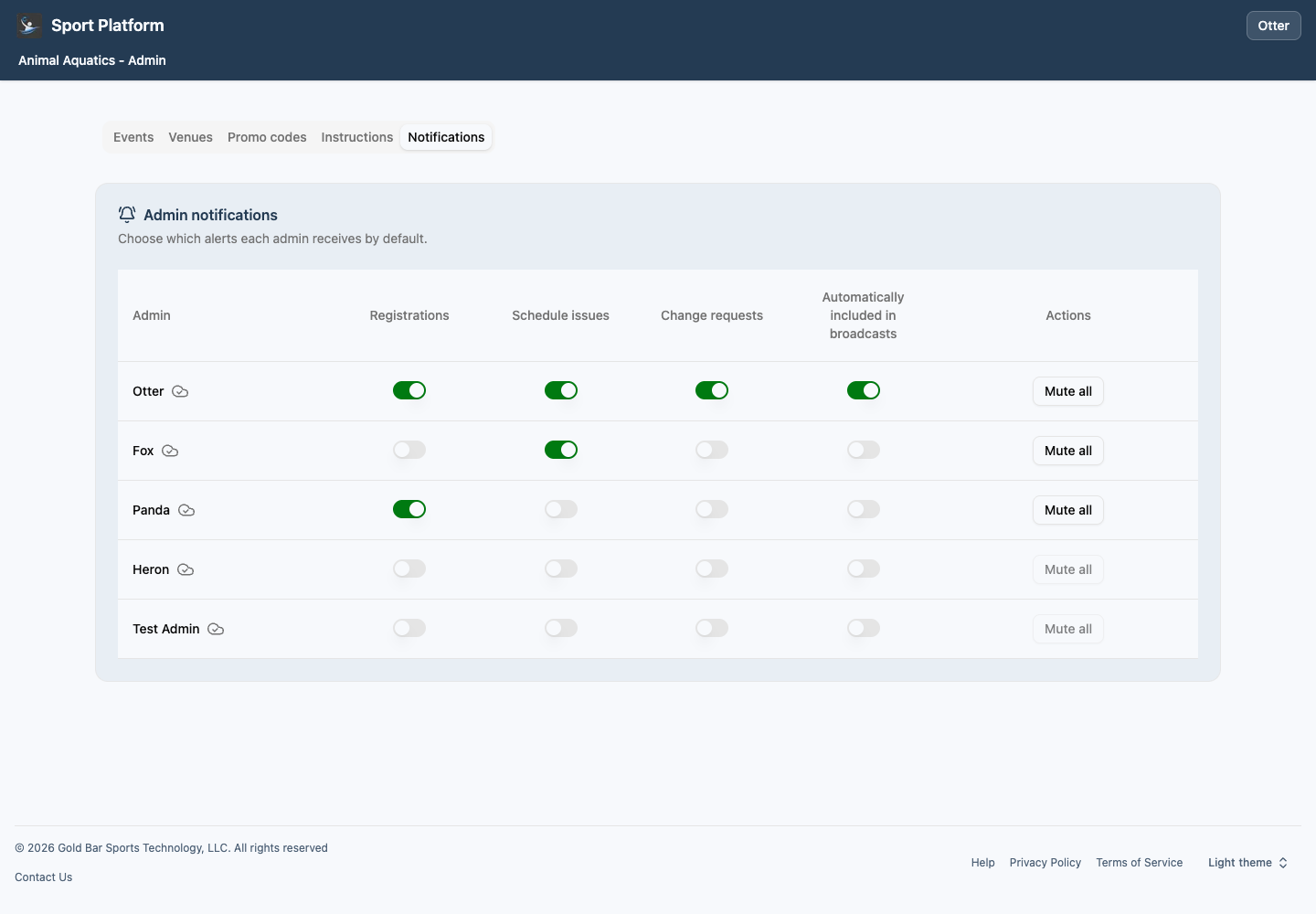

Choose which notifications your admins receive
Set notification defaults for your competition organizer, make exceptions for individual competitions, and choose which admins are automatically included in broadcasts.
As a competition organizer, you can give each admin the alerts they need. Set defaults for your organizer, then make exceptions for individual competitions. This walkthrough uses fictional Animal Aquatics admins.
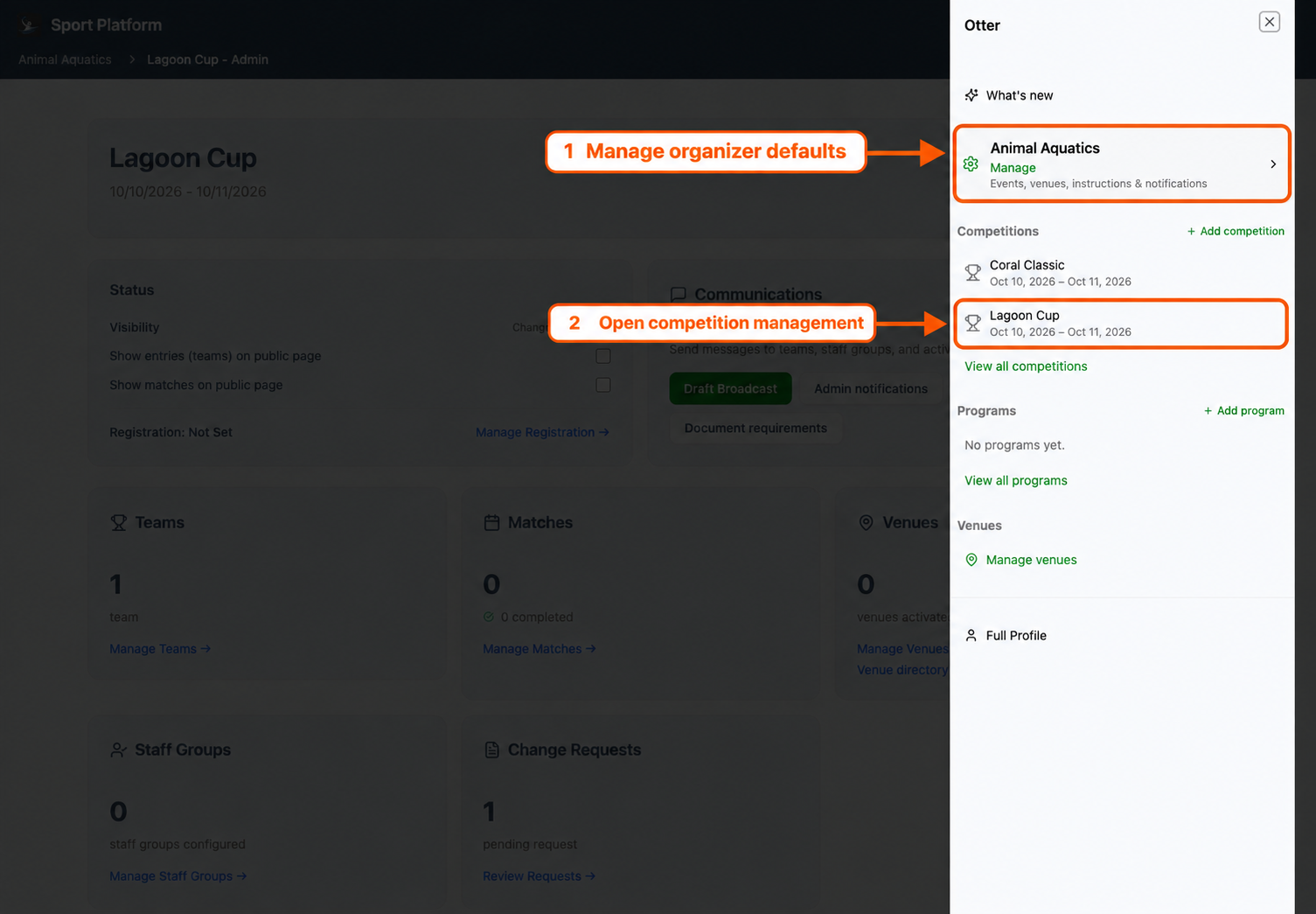
1. Open your competition organizer’s Notifications
Open your account menu in the top-right corner. Find your competition organizer’s card—for example, Animal Aquatics—and choose Manage. Then open Notifications to see a row for each admin.
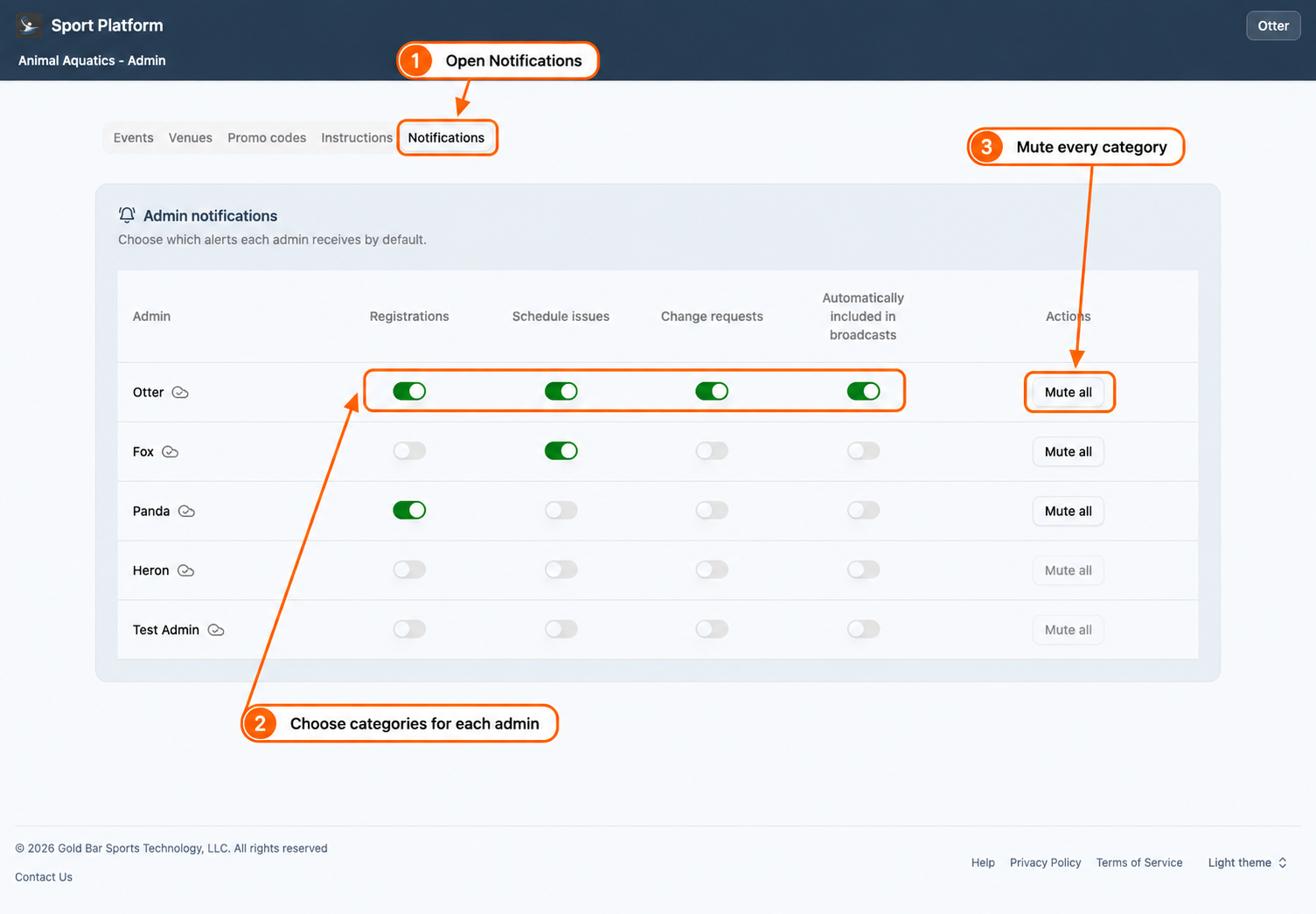
2. Choose each admin’s default categories
Turn individual switches on or off. Changes save automatically; wait for the cloud’s Synced status before refreshing or leaving the page.
- Registrations — registration confirmations and payment issues.
- Schedule issues — schedule validation alerts, such as overlapping matches or venues.
- Change requests — requests and related admin activity that need review.
- Automatically included in broadcasts — automatically adds the admin to competition broadcasts, even when you choose other audiences.
Use Mute all in an admin’s row to turn off all four competition organizer defaults. In this example, Otter has everything enabled, Fox has Schedule issues, Panda has Registrations, and Heron is muted. Competition exceptions remain separate.
3. Set preferences for one competition
Open your account menu again. Under Competitions, choose Lagoon Cup to open its management page. If the competition is not listed, choose View all competitions and select it from the list.
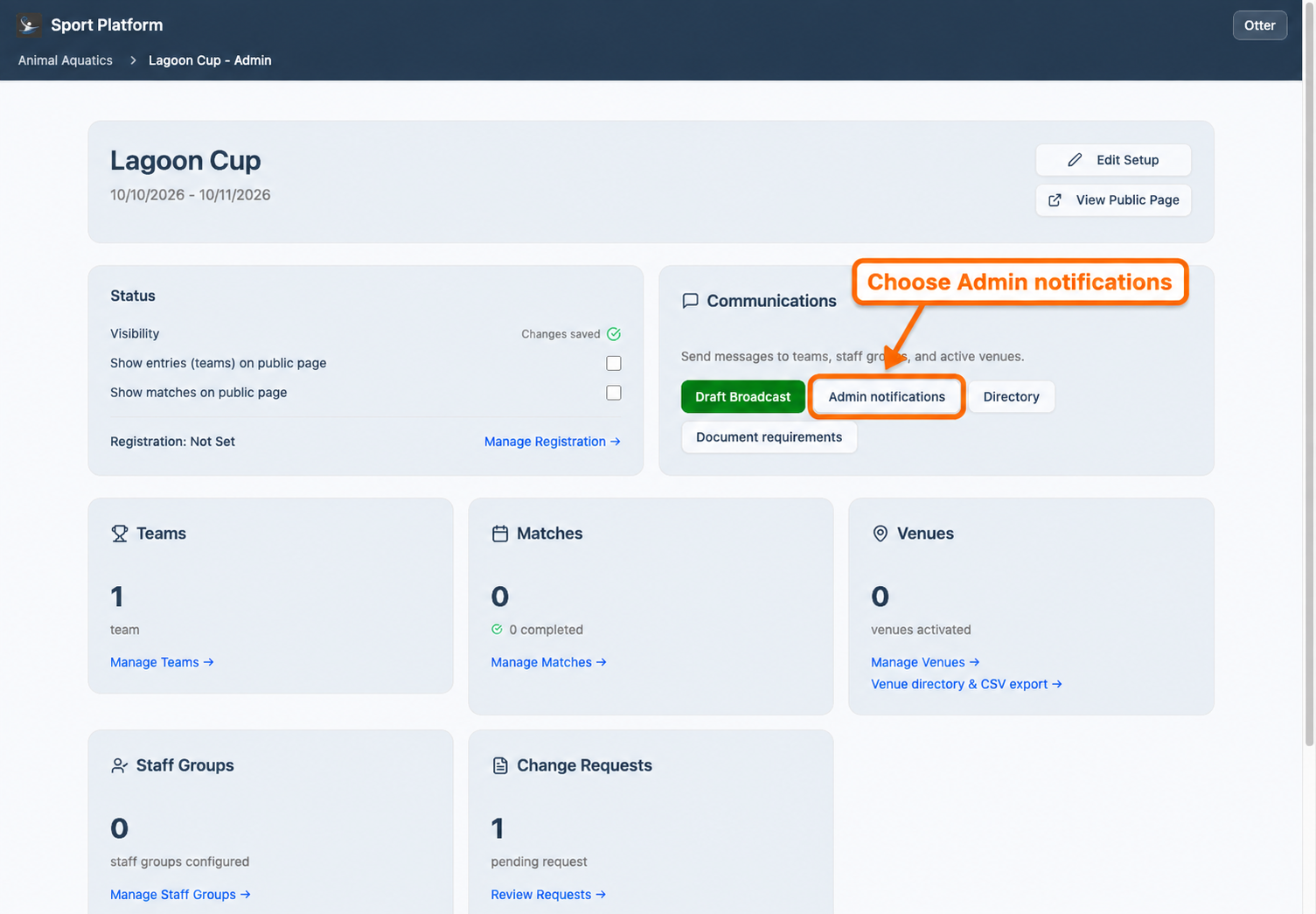
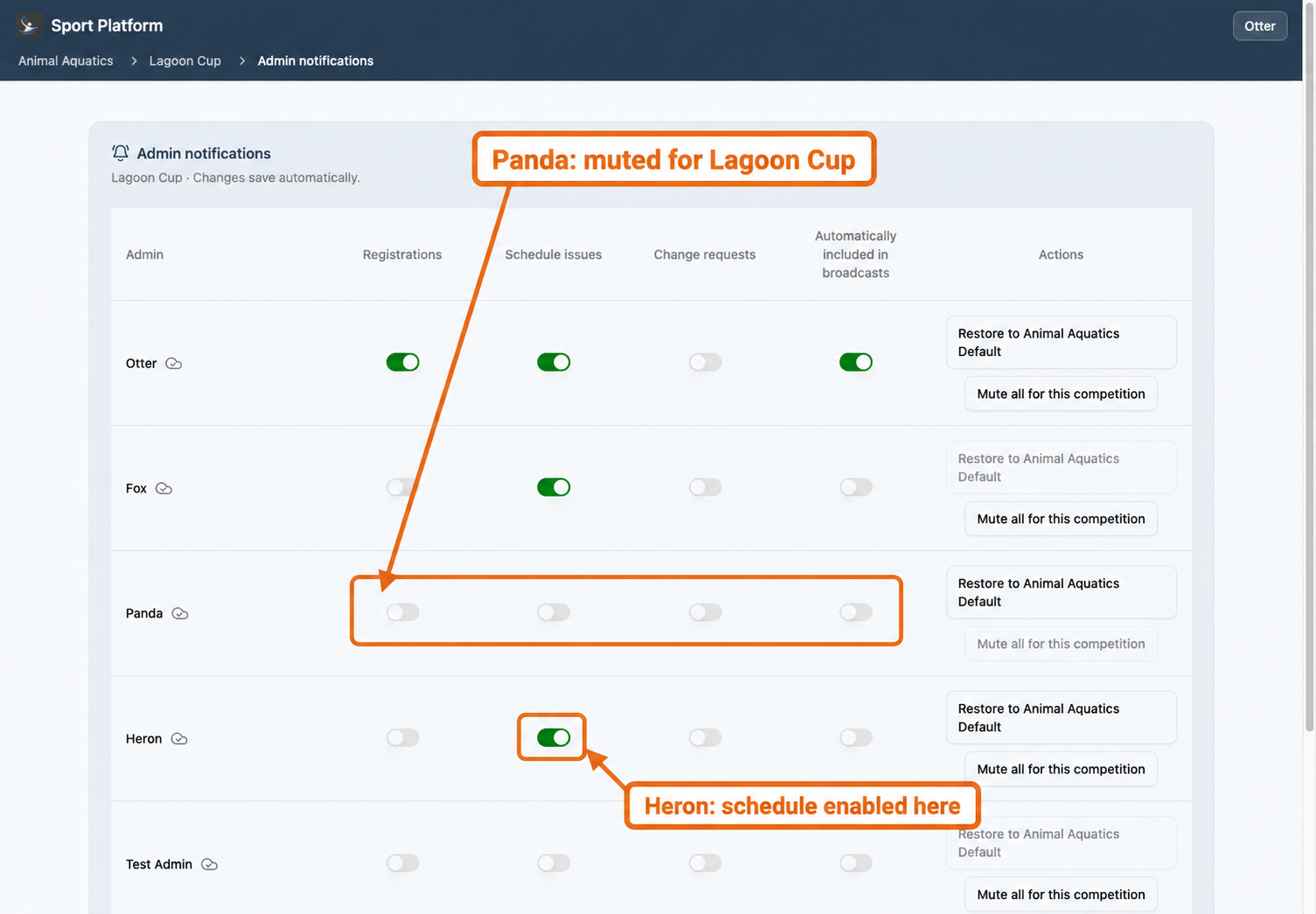
On the competition management page, find the Communications section and choose Admin notifications. The table initially inherits each admin’s competition organizer defaults.
Changing a setting here creates a complete replacement for that admin in Lagoon Cup. It does not change their competition organizer defaults or Coral Classic. You can enable a category even when it is disabled at competition organizer level.
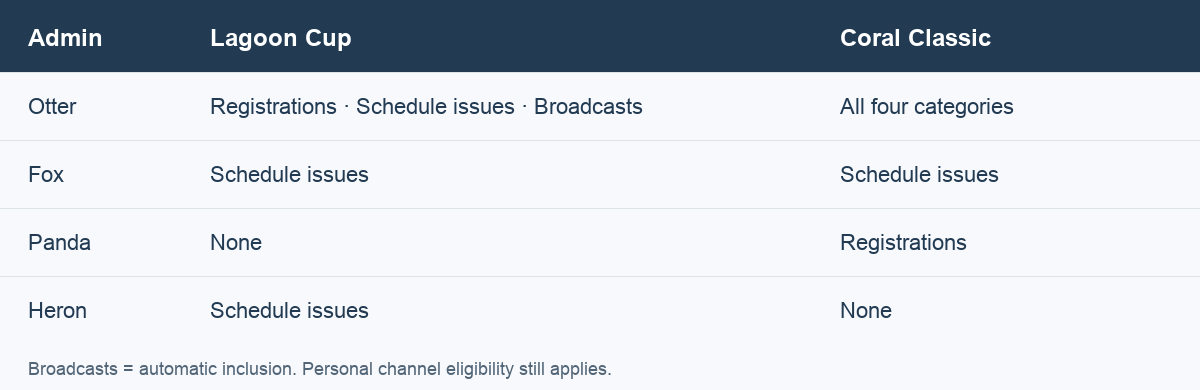
For example, choose Mute all for this competition for Panda, turn on Heron’s Schedule issues, and turn off Otter’s Change requests. Panda still receives registration notifications for Coral Classic; Heron now receives Lagoon Cup schedule alerts despite muted competition organizer defaults.
Example: who receives what?
With those competition exceptions, the four demo admins receive the following admin notifications, provided their personal communication channels are eligible. “Broadcasts” means automatic inclusion.
4. Restore an admin’s competition organizer defaults
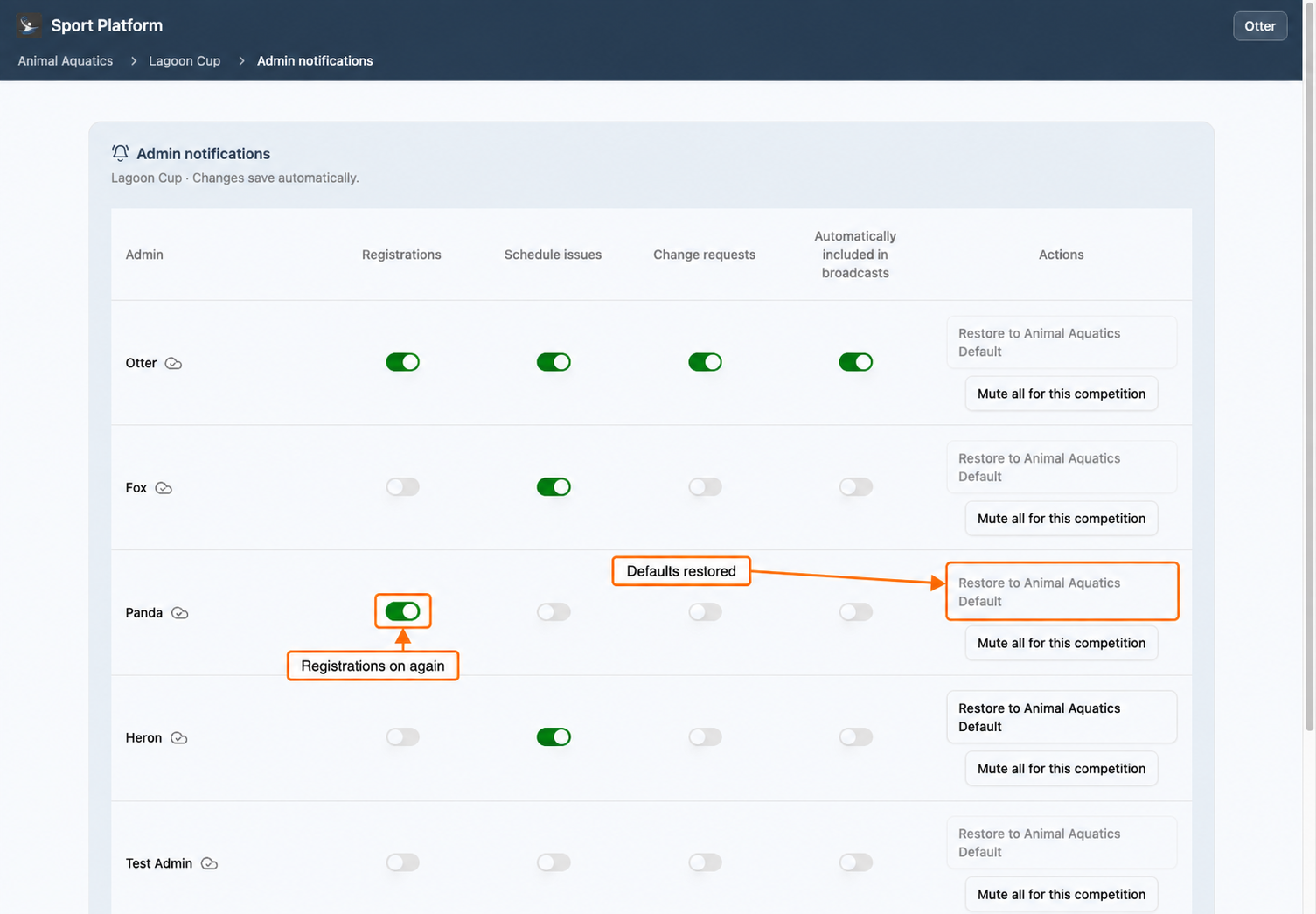
Choose Restore to Animal Aquatics Default in that admin’s competition row. This removes the replacement settings so the competition inherits the admin’s current competition organizer defaults again.
Restoring Panda brings back Registrations in Lagoon Cup. Restoring Otter brings back all four categories. Other admins’ exceptions stay in place. Wait for Synced, then refresh to check the result.
5. Check automatic broadcast inclusion
From the competition’s management page, open Draft Broadcast, then Show Animal Aquatics Admins. Otter is marked automatically included. The muted notes identify admins excluded from automatic inclusion and explain whether the setting comes from the competition organizer or this competition.
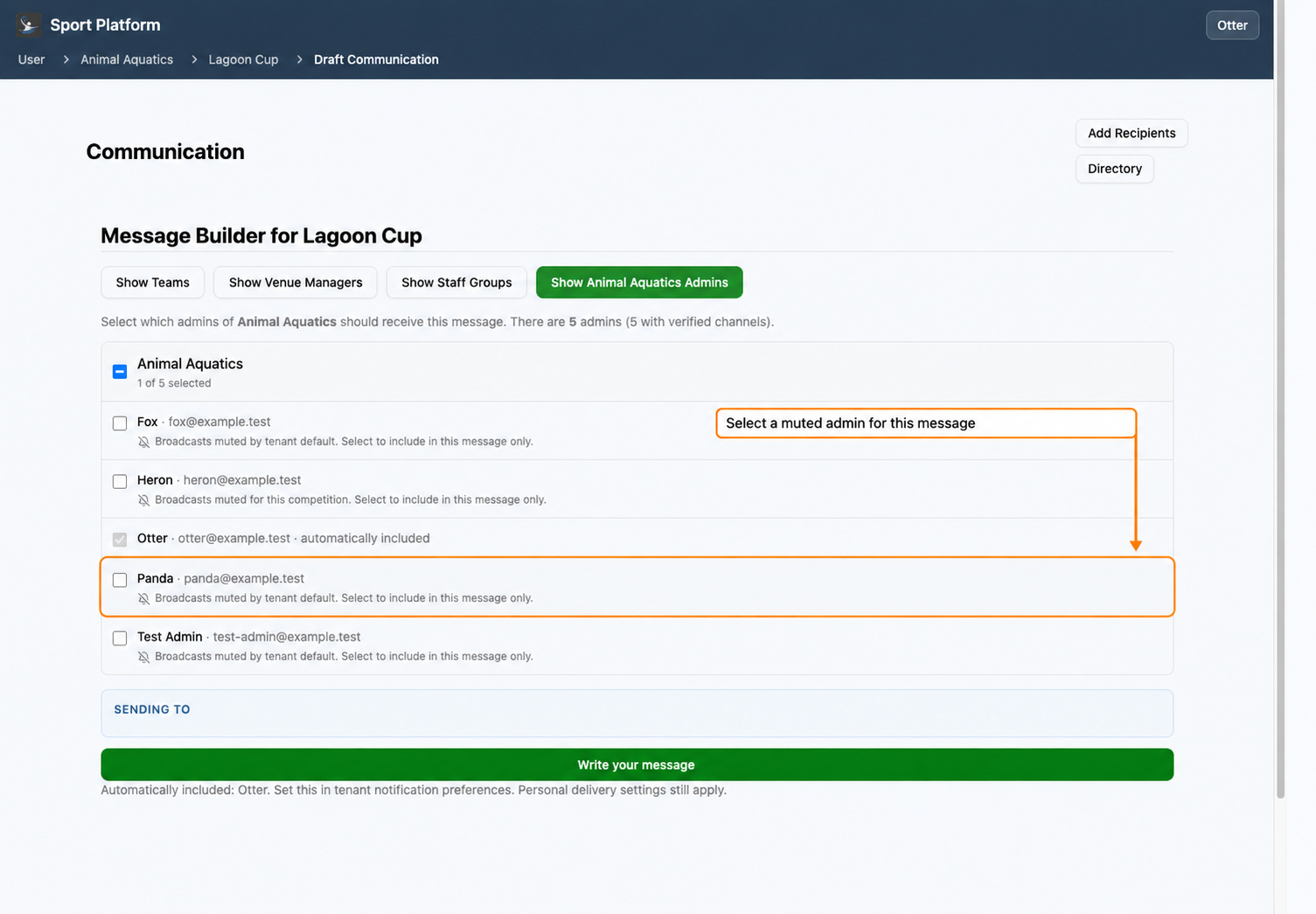
To include a muted admin in one broadcast, select their checkbox. For example, selecting Panda adds Panda to that message without changing the saved preference. The note changes to “Included in this message by your selection.”
These settings control admin notifications and automatic broadcast copies. They do not override personal email/SMS eligibility or verification, and they do not prevent delivery through another selected role or audience.